I've been building campaigns in the ChatGPT Ads Manager since it opened up, and there are a handful of things I wish someone had told me before I started. A few settings are permanent. A few limits aren't what the interface says they are.
So here's the full setup, start to finish, with the bits that caught me out.
New to the platform? Our complete guide to ChatGPT Ads explains how they work before you build anything.
If you're still deciding whether this platform is worth your time at all, read how ChatGPT Ads differ from Google and Meta first. This one assumes you've made that call and want to get a campaign live.
Start here, because you don't get a second go at it. The details you enter when you create the account are locked once it's made:
Pick your country carefully. If you run campaigns in several markets, think about which one this account should belong to before you click create. Getting it wrong means starting a fresh account, not editing a field.
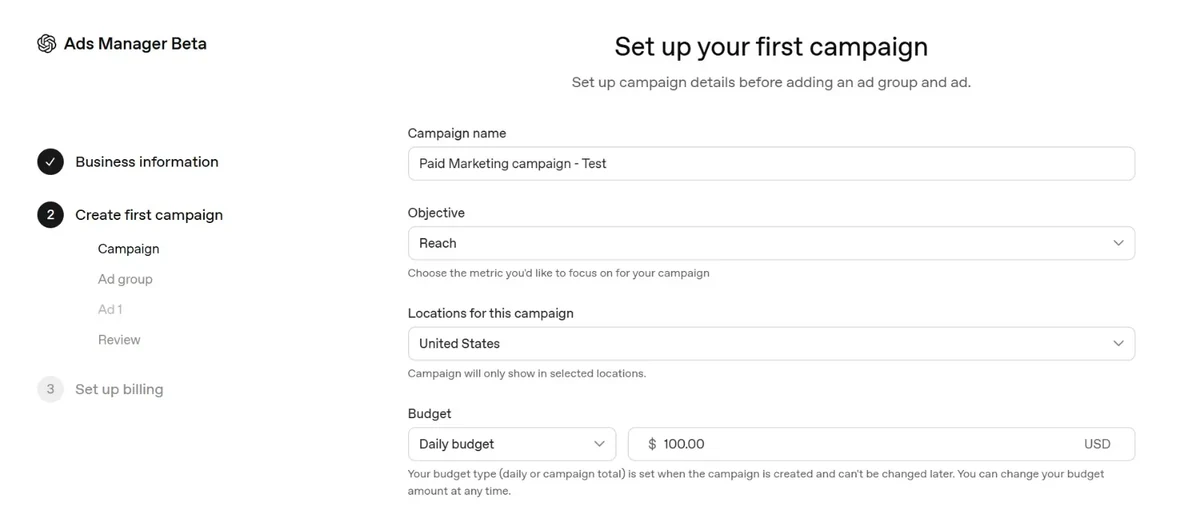
Three objectives, though what you actually see depends on your account access:
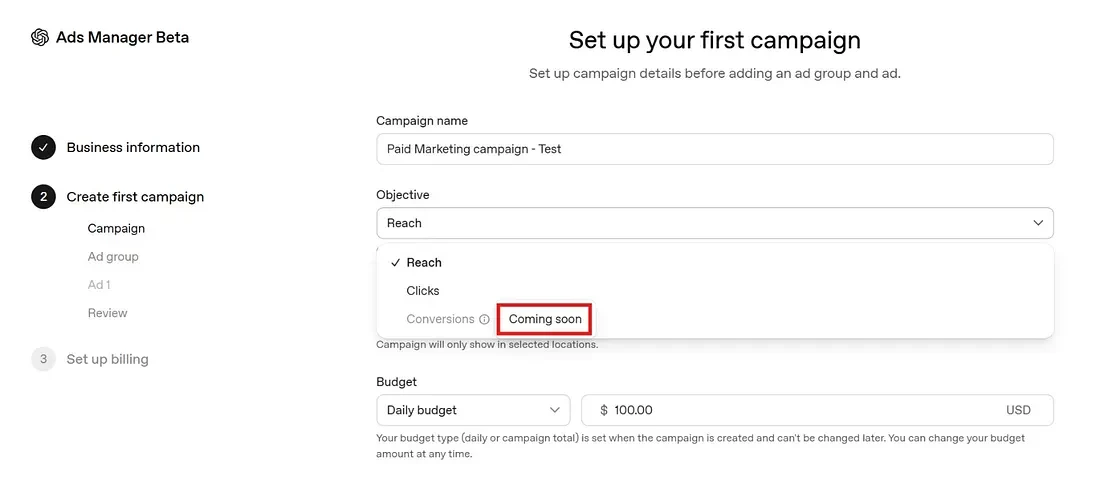
The platform is still changing month to month, so don't be surprised if your account shows something slightly different from mine.
Set a start date. The end date is optional, and I'd leave it blank unless you're running something genuinely time-bound.
More detail on bids, spending limits and test budgets: ChatGPT Ads pricing and minimum budget.
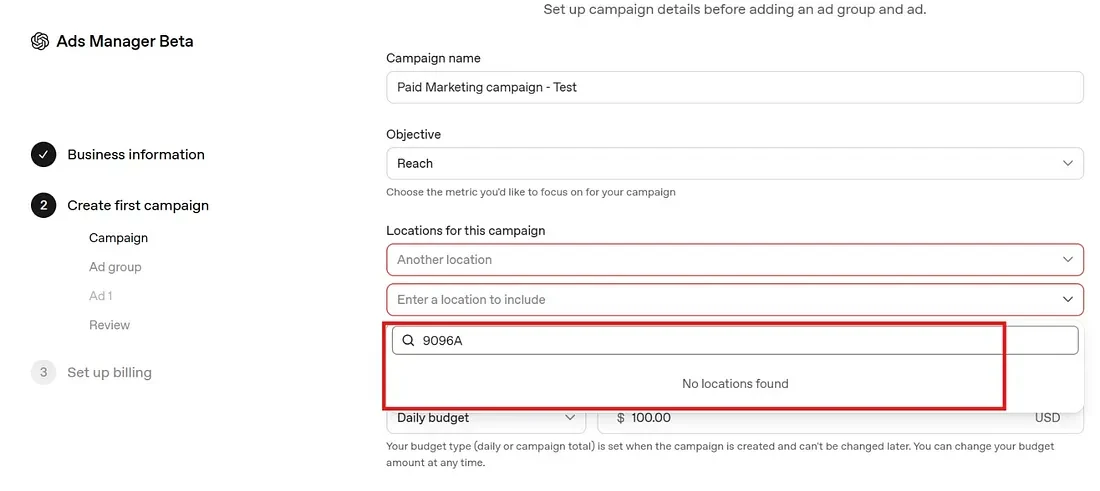
Seven countries are live right now: the United States, United Kingdom, Australia, Canada, Japan, New Zealand and South Korea.
How precisely you can target depends which one you pick. Some countries let you go down to country, state or region, city, DMA and postal code. Others don't. Check what's available for your market before you plan around it.
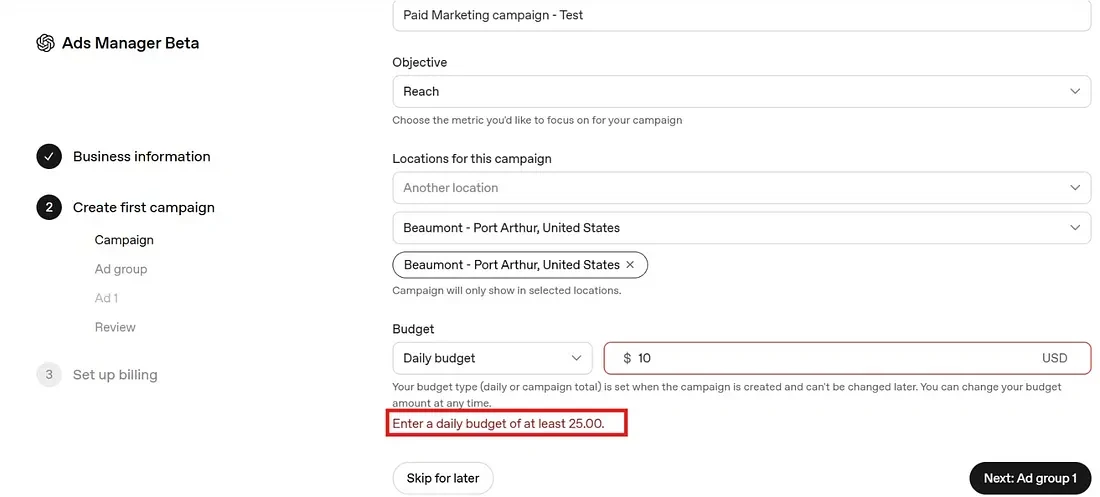
Daily or total. The minimum daily budget is $25, try $10 and the form stops you.
One thing worth catching: the budget type is locked when you create the campaign. You can change the amount whenever you like, but you cannot switch from daily to total later. Decide that one up front.
If you picked Reach, you set a maximum CPM, the most you'll pay per thousand impressions. If you picked Clicks, you're bidding CPC.
You can't move past this screen without entering a bid, so have a number in mind.
This is the part that replaces keywords, and the interface marks it optional. It isn't, really, not if you want the ads landing anywhere sensible. Before writing yours, see how context hints and the other ChatGPT Ads targeting signals work together.
You write plain descriptions of the conversations, topics or situations where your product makes sense. What matters, and what the documentation is clear about:
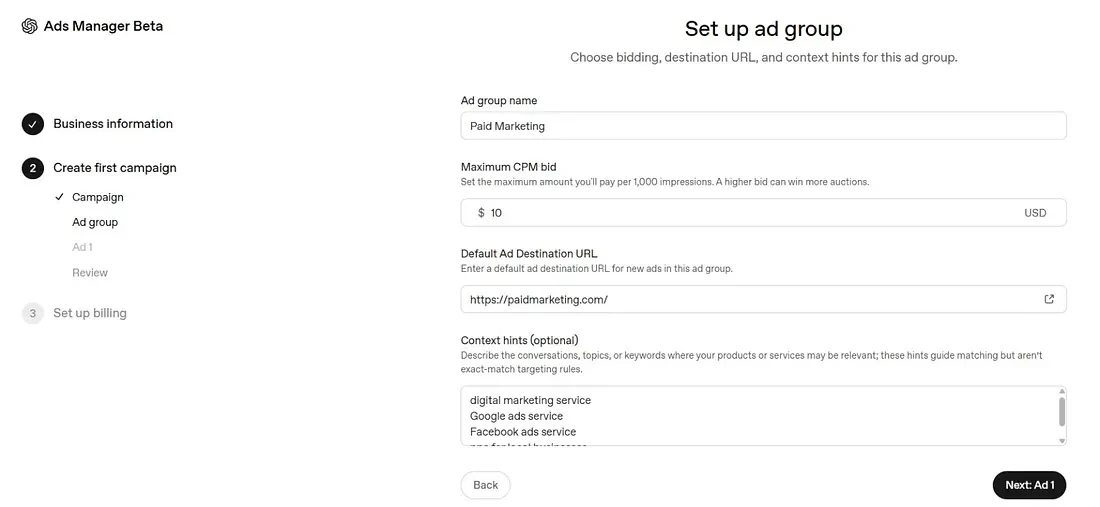
These are guidance signals, not exact-match rules. You're briefing the system on where you'd like to show up. You aren't defining a match type. If you come from Google Ads and expect the control a keyword gives you, that expectation will cost you money.
Here's the thing that actually caught me out.
The headline field allows 50 characters. The description allows 100. But go past 24 characters on the headline or 48 on the description and the platform shows a warning that your copy may get truncated depending on where it appears.
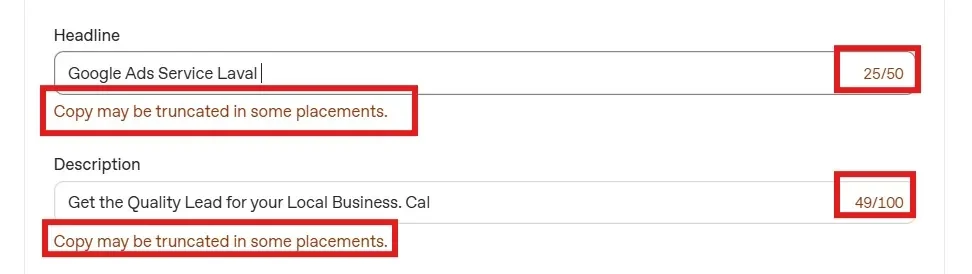
So the real limits are roughly half what the field lets you type. Write to the shorter number. A headline that gets cut off mid-sentence isn't doing you any favours.
One image per ad, PNG or JPG, minimum 256 × 256 pixels. Square works best.
One suggestion from testing: use something that shows the service or product rather than just dropping in your logo. The logo tells someone who you are. An image of the thing tells them why they should care.
You can duplicate ads inside the builder, which makes setting up variations quick.
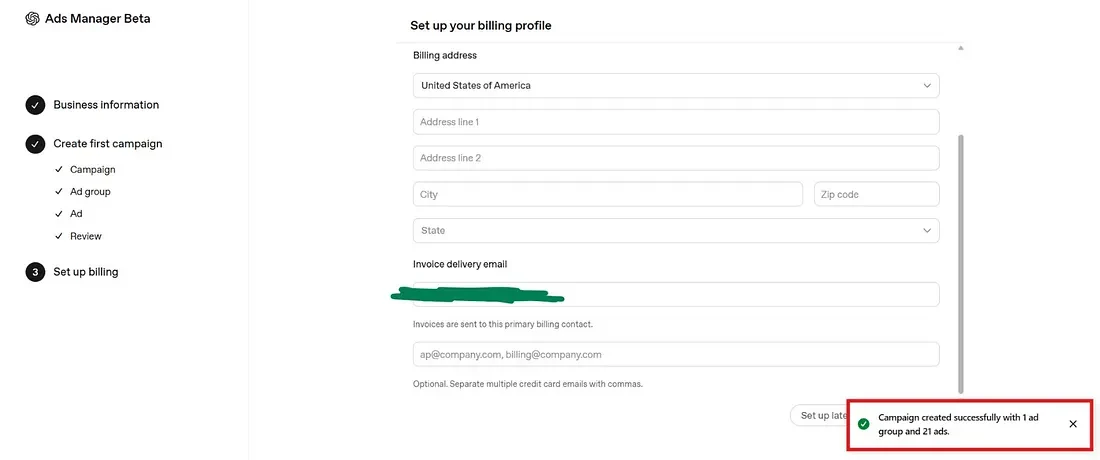
I built 21 ads in one ad group without hitting a limit. If there's a cap, I haven't found it yet. Worth knowing if you want several angles running from day one rather than adding them later.
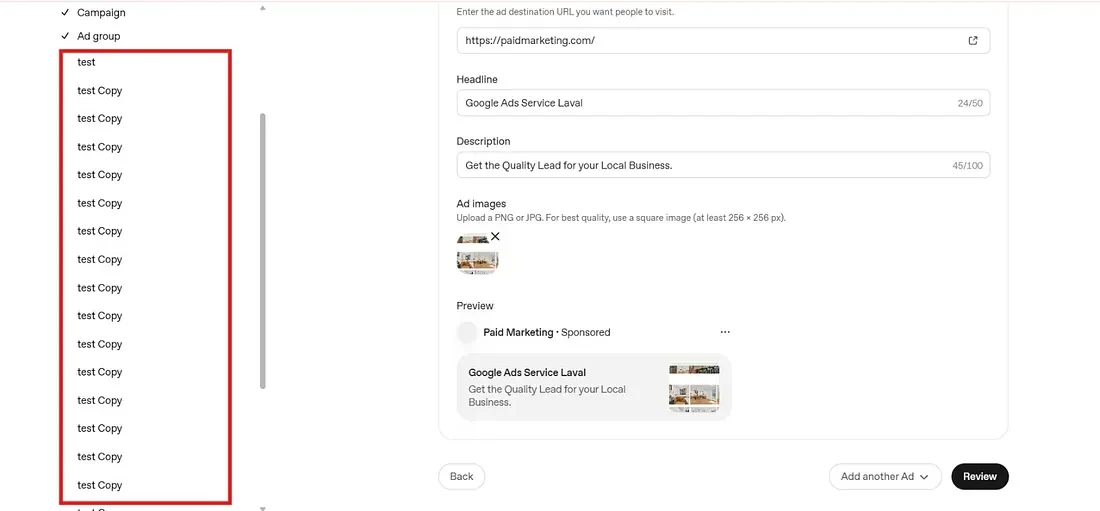
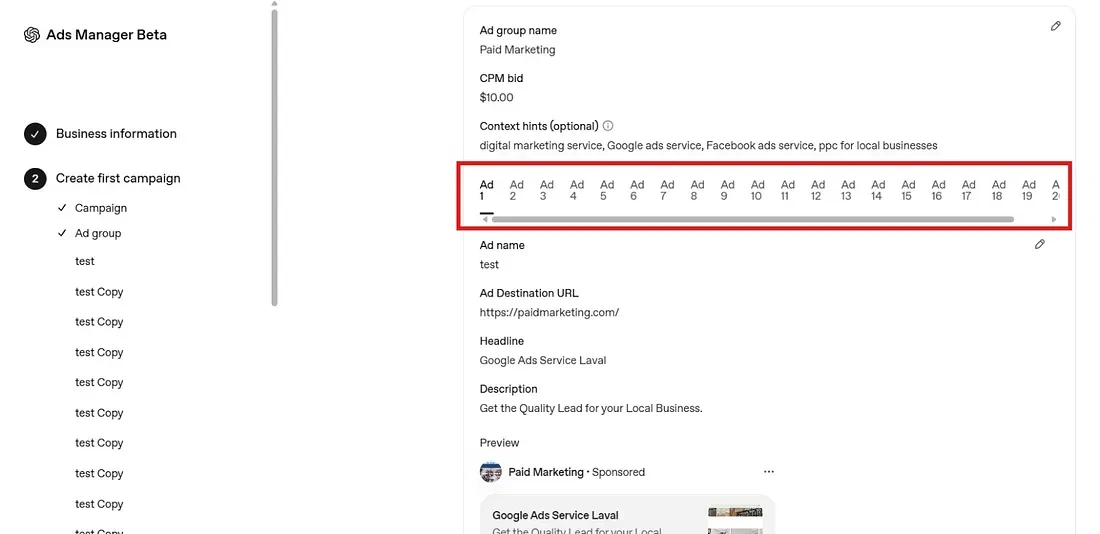
Before publishing you get a preview covering campaign, ad group and ad. This is also where you add your business logo, PNG or JPG, square, either uploaded or pulled from a URL.
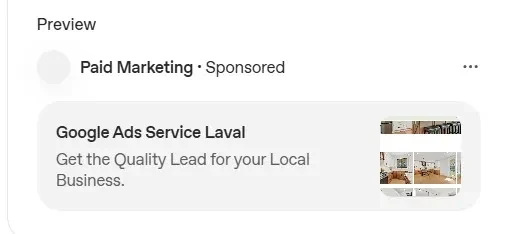
Read the preview properly. It's the last point where a truncated headline is still cheap to fix.
Card details, billing address, and an email for invoices.
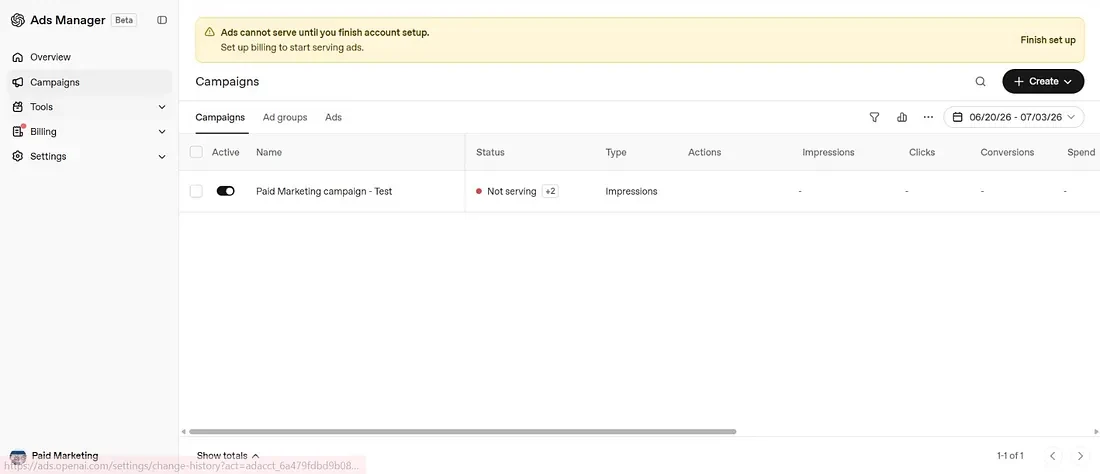
You can skip this and go to the dashboard, and the interface lets you do it without much fuss. But nothing serves until billing is complete and verified. I've seen people build a whole campaign, walk away happy, and wonder days later why there were no impressions.
That covers building a campaign. Reporting, optimisation and what the dashboard actually gives you is a longer subject, and honestly the more interesting one. I'll write that up separately.
We build and manage ChatGPT Ads campaigns alongside Google, Meta, Amazon and Microsoft , and we'll tell you straight whether it suits your business before you spend anything.
See our ChatGPT Ads service →Accurate as of August 2026. This platform changes constantly, so check OpenAI's own documentation before planning a budget.
Practical writing on paid media, based on real account work.